Posts

Showing posts with the label PDF

Digital Accessibility: Saved as PDF

Image
A more common type of PDF is one created in a different format and saved as a PDF. Perhaps you created a Microsoft Word handout and wanted to make it as available as possible to students. But to keep the formatting correct and not allow them to make any changes, you saved it as a PDF. The PDF is always less accessible than the original file. So, if you didn’t run the accessibility checker on your Word file and resolve any issues found then, the PDF will have those issues While PDFs are becoming easier to make accessible, the editing options are limited. My advice is that if you create the original file in another authoring tool (Word, PowerPoint, Etc) run accessibility checks in this tool and make your necessary changes there. It saves you quite a bit of work in Adobe Acrobat. that said, here's how to get the process started: Open the file in Acrobat Pro Click Tools Click Action Wizard Click Make Accessible After “making accessible,” Acrobat will want to run the ac...
Digital Accessibility: Scanned PDFs

Image
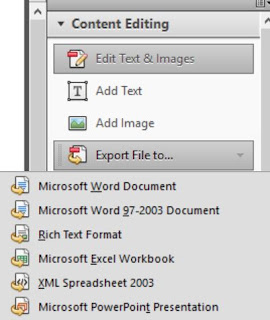
Scanned PDFs are usually the least accessible PDF type. If you have these in the educational tools you share with learners it's time to  get rid of them. In terms of screen readers, this type of PDF is as good as holding up a photograph and asking the tool to interpret it.  Many of us have Adobe Acrobat Pro installed on our university computers. If this is the case, we can use built-in tools to convert (the majority of) the scanned document into text. This can be up to 85% accurate, depending on the quality of the scan. The following are instructions form the Adobe Acrobat Website: Open a PDF file containing a scanned image in Acrobat for Mac or PC. Click on the “Edit PDF” tool in the right pane. Acrobat automatically applies optical character recognition (OCR) to your document and converts it to a fully editable copy of your PDF. Click the text element you wish to edit and start typing. New text matches the look of the original fonts in your scanned image. Choose “Fi...