Posts

Showing posts with the label Video

YouTube Video Auto-Captions

Image
IMPORTANT: It's vital that you review & edit video captions before you share the video link or post your video to Joule/Moodle. A quick note about YouTube auto captions: Auto-captions generally take up to 1 hour (or longer, depending on the duration of your upload) to show up. It's usually fairly quick, but as so many more educators are using this tool right now, you should expect a bit of a delay. Please remember that providing students with (at least) text closed captions to the videos we share with them is a legal requirement. Upload Your video to our YouTube Channel, and select the correct Playlist. Playlists for your team or class are pre-set to make all videos "Unlisted". When the video processes, it may open a new browser window on your computer and auto-play. In YouTube Studio > select Videos and click on the thumbnail of the video that you want to edit When the details page appears, select "More Options and scroll down to "Sub...


Embed YouTube Videos in Moodle/Joule

Image
Embedding Videos in our LMS: 1 minute tutorial on embedding your finished videos on a page in the Learning Management System By sharing the video from Youtube or another streaming service--rather than uploading the video directly to the LMS, you ensure the inclusion of closed-captions that accompany the video. 

Course Introduction Video

Image
Many things change when instruction and communication are moved from the traditional face-­to-­face (f2f) class setting into a fully online or hybrid setting. Some educators may find it difficult to offer a comparable online classroom experience that's found  in f2f classes. It can be difficult to establish an instructional relationship with students. Online learning is generally more solitary, and students may report that they feel disconnected from the class when they take a course online. Because of the reduced "human contact" element of teaching in an online instructional environment, some skeptics discount the possibility that fully online or hybrid learning can be as effective as the traditional method of information delivery. Course introduction videos go a long way to make personal connections for students, work to mitigate the solitary feel of online and hybrid courses, and inject your presence into the course content and communications. Here are suggested ba...

Replace VoiceOver PowerPoint with Video

Image
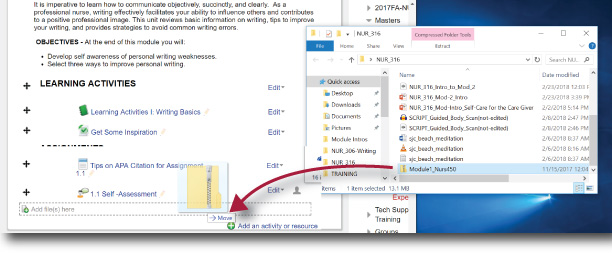
Voice Over Powerpoint creates extremely large file sizes and repeated uploading of these can potentially slow down responsiveness of your Learning Management System...the same is true of video files. These large PowerPoint files have he additional drawback or being cumbersome for students to view online. They are automatically downloaded when students click on the links. Here are a couple better alternatives: Make a Video: Record your PowerPoint Using Zoom Upload the Resulting video file ( likely called zoom_0.mp4) to your course Youtube Playlist Embed the Video in Joule or Moodle Create a simple SCORM file Here's a step-by-step walkthrough: Download iSpring Free and follow the installation instructions; Open the presentation you want to convert to SCORM; Navigate to the iSpring Free tab; Click Publish; Choose the file format (Flash or HTML5), check “Generate SCORM 1.2 Compliant course” and click Publish; Drag and Drop the Zipped file from your computer t...

VoiceThread

Image
Register for VoiceThread A quick note: VoiceThread functionality can be spotty when using Internet Explorer or Microsoft Edge browsers.  Visit the Website, VoiceThread.com Choose "Register" Complete online form Go to your email account to complete the account activation "Sign In" to VoiceThread "Browse" to view VT tutorials or to get some inspiration

Find Captioned YouTube Videos

Image
Closed Captions on YouTube can either be provided by the owner of the video or are automated captions which use speech recognition software to transcribe the video. For a video to have the options of auto-captions, the video owner must have first requested auto-captions on a video. The speech recognition track can take a few days to become available to viewers. Video owners can also disable auto-captions once they’re activated. How to search closed captioned videos on YouTube To search YouTube for videos with closed captions: Search the key terms of the video or type of video you want to watch. From the search results page, click on ‘Filter’. Under ‘Features’ select the ‘Subtitles/CC’ option. The results will now be filtered to display all videos with closed captions. Any video with captions provided by the video owner is indicated by the CC symbol in search results and a CC icon in the bottom right of the video player. How to turn closed captions on/off on YouTube ...

PowerPoint Best Practices

Image
Now that you have your content organized, it’s time to create your professional presentation using PowerPoint. Too often presenters rely on their text-heavy slideshows and simply read them to the audience. That’s one guaranteed way to bore them to tears. Here are 5 simple best practices to help make this an interesting and engaging finished product: 1. SIMPLIFY YOUR LAYOUT: Select a high contrast theme, that offers easy readability. Large sans serif fonts are easier to read when viewed on screens and devices. Remember light text on a colored background can be difficult to read for those with visual impairments, low quality device screens, or people seated far from the screen on which your presentation appears. 2. SIMPLIFY YOUR CONTENT: Text & Bulleted Lists: If you have a lot of content, there’s no need to try to fit everything onto one slide. Break up a text heavy page into multiple slides. The same goes for bulleted lists: group like items together and don’t be afrai...