Posts

Showing posts with the label Best Practices

YouTube Video Auto-Captions

Image
IMPORTANT: It's vital that you review & edit video captions before you share the video link or post your video to Joule/Moodle. A quick note about YouTube auto captions: Auto-captions generally take up to 1 hour (or longer, depending on the duration of your upload) to show up. It's usually fairly quick, but as so many more educators are using this tool right now, you should expect a bit of a delay. Please remember that providing students with (at least) text closed captions to the videos we share with them is a legal requirement. Upload Your video to our YouTube Channel, and select the correct Playlist. Playlists for your team or class are pre-set to make all videos "Unlisted". When the video processes, it may open a new browser window on your computer and auto-play. In YouTube Studio > select Videos and click on the thumbnail of the video that you want to edit When the details page appears, select "More Options and scroll down to "Sub...


Are you Ready to take an Online Course?

Image
Contrary to what many believe, online courses are not easier than face-to-face courses. In fact, they tend to be more demanding than face-to-face or hybrid courses requiring greater: organization, self-motivation, and time-management skills. If you struggle in these areas, you should reconsider taking an online class. Fully online classes do however provide flexibility and the ability for learners to complete coursework anywhere. To make the most of this flexibility, online learners need to: Know how to use the technology (e.g., email, use a Web browser, course learning management system). If you don’t know how to use the required tech… you must be prepared to learn.  Login regularly to participate in the class - at least 3 times per week, and commit at least 6 hours per week to the course. Some students login as much as twice a day.  Exercise good time-management to ensure enough time to study and complete all assignments. Submitting assignments right at or after the...

Course Introduction Video

Image
Many things change when instruction and communication are moved from the traditional face-­to-­face (f2f) class setting into a fully online or hybrid setting. Some educators may find it difficult to offer a comparable online classroom experience that's found  in f2f classes. It can be difficult to establish an instructional relationship with students. Online learning is generally more solitary, and students may report that they feel disconnected from the class when they take a course online. Because of the reduced "human contact" element of teaching in an online instructional environment, some skeptics discount the possibility that fully online or hybrid learning can be as effective as the traditional method of information delivery. Course introduction videos go a long way to make personal connections for students, work to mitigate the solitary feel of online and hybrid courses, and inject your presence into the course content and communications. Here are suggested ba...

Instructional Design Workshops

Image
Fall workshops for faculty: H5P Interactivity & Accessibility: (1 Hour) Do your students make the most of the video resources you assign...How can you build a more engaging, interactive student learning experience…What tools help ensure ADA accessibility in online course materials. Get answers to these questions and more in this hands-on faculty development workshop. Tour H5P, experiment with different content, and learn how to incorporate interactive video, student self-assessments, learning games into Joule or Moodle. Dates / Times: Sep. 26, 11am - 12pm  Oct. 11, 11am - 12pm  Note: This is a hands-on session, you will be working in Joule. Bring your laptop. Joule Course Clean-up: (1 Hour) A well-designed and organized Joule course site makes things much easier for both instructor and student. Through good site design and clear instructions about how to make use of your course site, help students understand how to interact effectively with their instr...

Video Light Board

Image
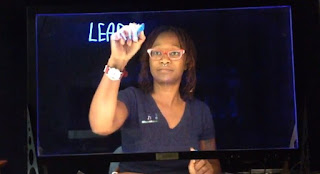
Educators across multiple disciplines will find video light boards useful in: illustrating problem-solving, annotating lectures, and sketching examples in real-time. This tool can save production time when you create educational videos. It’s located in the new Multimedia Studio in UAB 119. Note: To gain access to this resource and the full studio, members of the campus community must take either the online training or attend an in-person training. The Light Board Unit Our light board was manufactured by Learning Glass™ . The Learning Glass™ technology is deceptively simple: LED lighting on low-iron glass creates a transparent white board. With a neon marker in hand, the presenter faces the audience while writing on the board. This approach improves audience engagement in online presentations; as opposed to turning ones back on the camera/audience when using a traditional whiteboard in video. With the semi-transparent frosted glass insert in place, presenters annotate directly on...

Instructions to place Book Navigation Arrow

Image
Here's a nice button... Once the book is created, the first page will be an instruction page for students to navigate the book. The following is an example of this text: Welcome to Module 2. This Book houses the lecture, readings and assignments for this module, as well as an audio mindfulness exercise that you will experience then explore in the module Discussion board. To Navigate these Activities: Use the Blue "Next" and "Back" buttons, lower-right of this content area, to navigate the through this book OR use the table of contents to the upper-right of this content area In Joule, make sure that editing is turned on, click on the title of the book on your course homepage: Select the edit icon (pencil icon in the table of contents) Place your cursor at the beginning of the text in the editor (top-left) Choose Insert/Edit Image Icon Find or upload image > Navigate to the image on your computer and upload (this will be in your Recent fil...

Replace VoiceOver PowerPoint with Video

Image
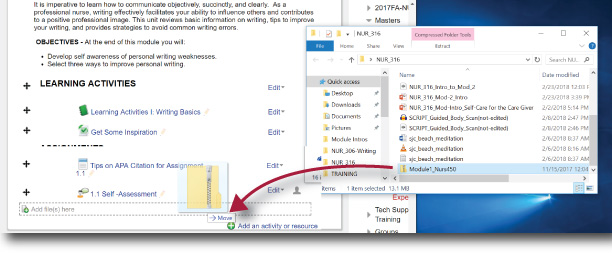
Voice Over Powerpoint creates extremely large file sizes and repeated uploading of these can potentially slow down responsiveness of your Learning Management System...the same is true of video files. These large PowerPoint files have he additional drawback or being cumbersome for students to view online. They are automatically downloaded when students click on the links. Here are a couple better alternatives: Make a Video: Record your PowerPoint Using Zoom Upload the Resulting video file ( likely called zoom_0.mp4) to your course Youtube Playlist Embed the Video in Joule or Moodle Create a simple SCORM file Here's a step-by-step walkthrough: Download iSpring Free and follow the installation instructions; Open the presentation you want to convert to SCORM; Navigate to the iSpring Free tab; Click Publish; Choose the file format (Flash or HTML5), check “Generate SCORM 1.2 Compliant course” and click Publish; Drag and Drop the Zipped file from your computer t...

PowerPoint Best Practices

Image
Now that you have your content organized, it’s time to create your professional presentation using PowerPoint. Too often presenters rely on their text-heavy slideshows and simply read them to the audience. That’s one guaranteed way to bore them to tears. Here are 5 simple best practices to help make this an interesting and engaging finished product: 1. SIMPLIFY YOUR LAYOUT: Select a high contrast theme, that offers easy readability. Large sans serif fonts are easier to read when viewed on screens and devices. Remember light text on a colored background can be difficult to read for those with visual impairments, low quality device screens, or people seated far from the screen on which your presentation appears. 2. SIMPLIFY YOUR CONTENT: Text & Bulleted Lists: If you have a lot of content, there’s no need to try to fit everything onto one slide. Break up a text heavy page into multiple slides. The same goes for bulleted lists: group like items together and don’t be afrai...