Posts

Instructional Design Workshops

Image
Fall workshops for faculty: H5P Interactivity & Accessibility: (1 Hour) Do your students make the most of the video resources you assign...How can you build a more engaging, interactive student learning experience…What tools help ensure ADA accessibility in online course materials. Get answers to these questions and more in this hands-on faculty development workshop. Tour H5P, experiment with different content, and learn how to incorporate interactive video, student self-assessments, learning games into Joule or Moodle. Dates / Times: Sep. 26, 11am - 12pm  Oct. 11, 11am - 12pm  Note: This is a hands-on session, you will be working in Joule. Bring your laptop. Joule Course Clean-up: (1 Hour) A well-designed and organized Joule course site makes things much easier for both instructor and student. Through good site design and clear instructions about how to make use of your course site, help students understand how to interact effectively with their instr...

Video Light Board

Image
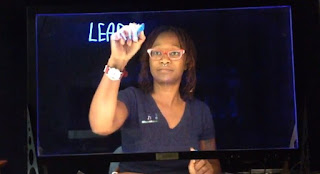
Educators across multiple disciplines will find video light boards useful in: illustrating problem-solving, annotating lectures, and sketching examples in real-time. This tool can save production time when you create educational videos. It’s located in the new Multimedia Studio in UAB 119. Note: To gain access to this resource and the full studio, members of the campus community must take either the online training or attend an in-person training. The Light Board Unit Our light board was manufactured by Learning Glass™ . The Learning Glass™ technology is deceptively simple: LED lighting on low-iron glass creates a transparent white board. With a neon marker in hand, the presenter faces the audience while writing on the board. This approach improves audience engagement in online presentations; as opposed to turning ones back on the camera/audience when using a traditional whiteboard in video. With the semi-transparent frosted glass insert in place, presenters annotate directly on...

Instructions to place Book Navigation Arrow

Image
Here's a nice button... Once the book is created, the first page will be an instruction page for students to navigate the book. The following is an example of this text: Welcome to Module 2. This Book houses the lecture, readings and assignments for this module, as well as an audio mindfulness exercise that you will experience then explore in the module Discussion board. To Navigate these Activities: Use the Blue "Next" and "Back" buttons, lower-right of this content area, to navigate the through this book OR use the table of contents to the upper-right of this content area In Joule, make sure that editing is turned on, click on the title of the book on your course homepage: Select the edit icon (pencil icon in the table of contents) Place your cursor at the beginning of the text in the editor (top-left) Choose Insert/Edit Image Icon Find or upload image > Navigate to the image on your computer and upload (this will be in your Recent fil...

H5P: Timeline Walk-Through

Image
H5P Test timeline in action.... please disregard my fallacious dates and dummy text...this was just a quick test. We are all enjoying working in H5P to create educational content, but a couple of us ran into a snag when working with the Timeline Content Type during the workshop. Below are steps to properly create your timeline. Start Here: Create New Content > Add Title (following the appropriate naming convention) > Select 'Timeline' from the DropDown Name the Headline: Same as the timeline title... Remember this is your Opening Screen. Body Text: Introduction to the entire timeline, don't skip this step Background Image: always skip this, it will make your timeline unnecessarily busy. Assets: You can display images, video or even audio in the timeline Media: locate your main image (or other media) by URL and place it here Credit the original creator Add a brief image caption for accessibility Important: the app does not explicitly state thi...

Record Audio with Windows Voice Recorder

Image
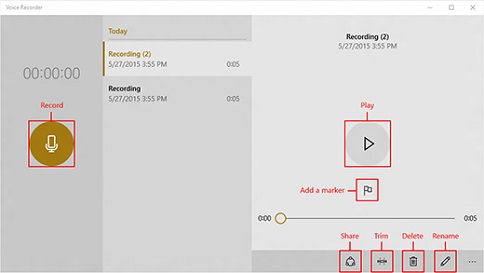
Several people have asked about what recording software to use, and this is freely available on your computer, effective and requires no download! To find Windows Voice Recorder: Choose the search icon on your taskbar (magnifying glass)  When search opens, start typing the word "record" The application icon will appear, click on it to open Voice Recorder is an app for recording lectures, conversations, and other sounds (previously called Sound Recorder). Hit the big   Record   button, and add markers to identify key moments as you record or play. Then you can trim, rename, or share your recordings, which are saved in   Documents   >   Sound Recordings . Originally posted on Microsoft Windows Support page Where are recordings saved: Find your finished recordings by clicking the "More" (three dots) icon, to the right of the pencil icon. Choose "Open File Location" Viola!

Replace VoiceOver PowerPoint with Video

Image
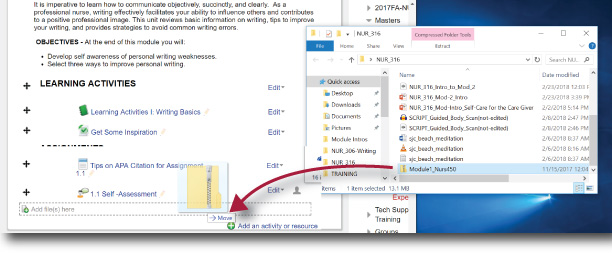
Voice Over Powerpoint creates extremely large file sizes and repeated uploading of these can potentially slow down responsiveness of your Learning Management System...the same is true of video files. These large PowerPoint files have he additional drawback or being cumbersome for students to view online. They are automatically downloaded when students click on the links. Here are a couple better alternatives: Make a Video: Record your PowerPoint Using Zoom Upload the Resulting video file ( likely called zoom_0.mp4) to your course Youtube Playlist Embed the Video in Joule or Moodle Create a simple SCORM file Here's a step-by-step walkthrough: Download iSpring Free and follow the installation instructions; Open the presentation you want to convert to SCORM; Navigate to the iSpring Free tab; Click Publish; Choose the file format (Flash or HTML5), check “Generate SCORM 1.2 Compliant course” and click Publish; Drag and Drop the Zipped file from your computer t...

VoiceThread

Image
Register for VoiceThread A quick note: VoiceThread functionality can be spotty when using Internet Explorer or Microsoft Edge browsers.  Visit the Website, VoiceThread.com Choose "Register" Complete online form Go to your email account to complete the account activation "Sign In" to VoiceThread "Browse" to view VT tutorials or to get some inspiration