Posts

Ideas for Light Board Video

Image
Here are a few examples of light board videos created by educators around the world.  Explain Concepts or Ideas: Step-by-Step Problem Solving:  Clarify Difficult Concepts: Create Mini-Lectures: Combine the light board with other tools:

Course Introduction Video

Image
Many things change when instruction and communication are moved from the traditional face-­to-­face (f2f) class setting into a fully online or hybrid setting. Some educators may find it difficult to offer a comparable online classroom experience that's found  in f2f classes. It can be difficult to establish an instructional relationship with students. Online learning is generally more solitary, and students may report that they feel disconnected from the class when they take a course online. Because of the reduced "human contact" element of teaching in an online instructional environment, some skeptics discount the possibility that fully online or hybrid learning can be as effective as the traditional method of information delivery. Course introduction videos go a long way to make personal connections for students, work to mitigate the solitary feel of online and hybrid courses, and inject your presence into the course content and communications. Here are suggested ba...

The Multimedia Studio

Image
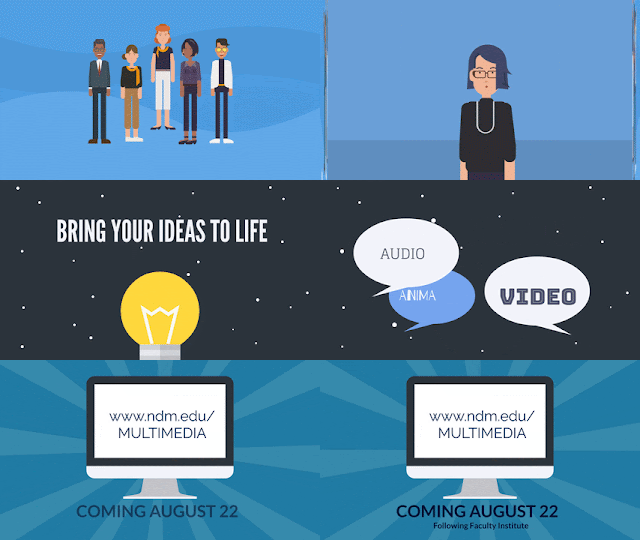
fa/2019 Location / Hours: UAB 119, Mon - Fri 8:30 a.m. to 3:30 p.m. Contact Us: sontechsupport@ndm.edu  The Multimedia Studio is a dedicated space to record and edit audio, video, and multimedia to enhance teaching and learning. Use the studio to bring your ideas to life. The Multimedia Studio features easy-to-use professional quality tools for the entire NDMU community:  Educators - Create course introductions, effective educational videos, explainer videos to teach complex concepts, and even animations.  Students - Record and produce a presentation for a multimedia assignment, create vlogs or podcasts for your student organization, or create an animated response to a writing prompt.  Administrative Staff - Create explainer videos and tutorials, conduct candidate interviews, and even practice presentations.  Note: Professors must sanction class multimedia project for students to access the Studio (likewise, for faculty advisors and student organ...

Instructional Design Workshops

Image
Fall workshops for faculty: H5P Interactivity & Accessibility: (1 Hour) Do your students make the most of the video resources you assign...How can you build a more engaging, interactive student learning experience…What tools help ensure ADA accessibility in online course materials. Get answers to these questions and more in this hands-on faculty development workshop. Tour H5P, experiment with different content, and learn how to incorporate interactive video, student self-assessments, learning games into Joule or Moodle. Dates / Times: Sep. 26, 11am - 12pm  Oct. 11, 11am - 12pm  Note: This is a hands-on session, you will be working in Joule. Bring your laptop. Joule Course Clean-up: (1 Hour) A well-designed and organized Joule course site makes things much easier for both instructor and student. Through good site design and clear instructions about how to make use of your course site, help students understand how to interact effectively with their instr...

Video Light Board

Image
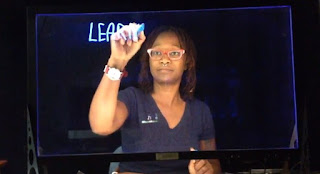
Educators across multiple disciplines will find video light boards useful in: illustrating problem-solving, annotating lectures, and sketching examples in real-time. This tool can save production time when you create educational videos. It’s located in the new Multimedia Studio in UAB 119. Note: To gain access to this resource and the full studio, members of the campus community must take either the online training or attend an in-person training. The Light Board Unit Our light board was manufactured by Learning Glass™ . The Learning Glass™ technology is deceptively simple: LED lighting on low-iron glass creates a transparent white board. With a neon marker in hand, the presenter faces the audience while writing on the board. This approach improves audience engagement in online presentations; as opposed to turning ones back on the camera/audience when using a traditional whiteboard in video. With the semi-transparent frosted glass insert in place, presenters annotate directly on...

Instructions to place Book Navigation Arrow

Image
Here's a nice button... Once the book is created, the first page will be an instruction page for students to navigate the book. The following is an example of this text: Welcome to Module 2. This Book houses the lecture, readings and assignments for this module, as well as an audio mindfulness exercise that you will experience then explore in the module Discussion board. To Navigate these Activities: Use the Blue "Next" and "Back" buttons, lower-right of this content area, to navigate the through this book OR use the table of contents to the upper-right of this content area In Joule, make sure that editing is turned on, click on the title of the book on your course homepage: Select the edit icon (pencil icon in the table of contents) Place your cursor at the beginning of the text in the editor (top-left) Choose Insert/Edit Image Icon Find or upload image > Navigate to the image on your computer and upload (this will be in your Recent fil...

H5P: Timeline Walk-Through

Image
H5P Test timeline in action.... please disregard my fallacious dates and dummy text...this was just a quick test. We are all enjoying working in H5P to create educational content, but a couple of us ran into a snag when working with the Timeline Content Type during the workshop. Below are steps to properly create your timeline. Start Here: Create New Content > Add Title (following the appropriate naming convention) > Select 'Timeline' from the DropDown Name the Headline: Same as the timeline title... Remember this is your Opening Screen. Body Text: Introduction to the entire timeline, don't skip this step Background Image: always skip this, it will make your timeline unnecessarily busy. Assets: You can display images, video or even audio in the timeline Media: locate your main image (or other media) by URL and place it here Credit the original creator Add a brief image caption for accessibility Important: the app does not explicitly state thi...